GroupDocs.Markdown at a glance

API to parse and export documents to Markdown in .NET applications.

Illustration markdown

Accurate and reliable conversion

Efficiently convert supported formats to Markdown while maintaining structure integrity. Supports .NET Framework 4.6.2+ and .NET 6.0 on Windows and Linux.

Popular formats supported

Export PDF, Word, Excel, eBooks, Web and plain text files to Markdown, including password-protected documents.

Runs on your local machine

You control your data - we provide an on-premise API that does not require any cloud or internet connection.

Platforms support

The following operating systems, frameworks and package managers are supported.

Amazon
Docker
Azure
VS Code
ReSharper
macOS
Linux
NuGet

Supported file formats

The following file formats are supported for export to Markdown.

PDF

  • Digital PDFs, PDF/A, PDF/E, PDF/X and PDF/UA
  • Encrypted and Signed PDFs

Word & Excel

  • Word: DOCX, DOC, RTF, DOCM, DOTX, DOTM, DOT, ODT, OTT
  • Excel: XLSX, XLS, CSV, XLSM, XLSB, ODS, TSV, NUMBERS, XLTX, XLTM, XLAM, FODS, SXC, OTS, XLT

Other

  • e-Books: EPUB, MOBI, AZW3
  • Text: TXT, XML
  • Web: CHM

GroupDocs.Markdown features

These are the features that make our product stand out.

Feature icon

Export multiple document formats

Convert most popular document formats to Markdown (PDF, DOCX, XLSX, EPUB and more).

Feature icon

Advanced Markdown formatting

Headings, paragraphs, lists, tables, links, images, blockquotes and code blocks are exported to the appropriate Markdown syntax.

Feature icon

Full control over images

Take control over images by exporting them or embedding into the output Markdown file.

Feature icon

Runs on your local machine

No cloud or Internet connection required. All processing is done on your local machine.

Feature icon

Intuitive public API

Simple and intuitive public API designed by developers for developers with love.

Feature icon

Works on Windows and Linux

.NET and .NET Framework assemblies are provided within the NuGet package.

Code samples

The most common usage scenarios for exporting documents to Markdown in .NET applications.

Export DOCX to Markdown

This code sample shows how to convert a DOCX file to Markdown and save output to file. The images are embedded in the output file.
// Import the namespace
using GroupDocs.Markdown;

// Set the license
License.Set("GroupDocs.Markdown.lic");

// Instantiate converter
var converter = new MarkdownConverter("annual-review.docx");

// Convert and save output to file
converter.Convert("annual-review.md");
// Import the namespace  
open GroupDocs.Markdown

// Set the license
License.Set("GroupDocs.Markdown.lic")

// Instantiate converter
let converter = new MarkdownConverter("annual-review.docx")

// Convert and save output to file
converter.Convert("annual-review.md")
' Import the namespace  
Imports GroupDocs.Markdown

Module Program
    Sub Main()
        ' Set the license
        License.Set("GroupDocs.Markdown.lic")

        ' Instantiate converter
        Dim converter As New MarkdownConverter("annual-review.docx")

        ' Convert and save output to file
        converter.Convert("annual-review.md")
    End Sub
End Module

Save images to a folder

This code sample shows how to convert a DOCX file to Markdown and save images to a separate folder instead of embedding them.
// Import the namespace
using GroupDocs.Markdown;

// Instantiate converter
using var converter = new MarkdownConverter("annual-report.docx");

// Set image export strategy and output folder
var options = new ConvertOptions
{
    ImageExportStrategy = new ExportImagesToFileSystemStrategy("./images")
    {
        ImagesRelativePath = "images"
    }
};

// Convert and save output to file
converter.Convert("annual-report.md", options);
// Import the namespace
open GroupDocs.Markdown

// Instantiate converter
use converter = new MarkdownConverter("annual-report.docx")

// Set image export strategy and output folder
let options = ConvertOptions()
let strategy = ExportImagesToFileSystemStrategy("./images")
strategy.ImagesRelativePath <- "images"
options.ImageExportStrategy <- strategy

// Convert and save output to file
converter.Convert("annual-report.md", options)
' Import the namespace  
Imports GroupDocs.Markdown

' Instantiate converter
Using converter As New MarkdownConverter("annual-report.docx")

    ' Set image export strategy and output folder
    Dim strategy As New ExportImagesToFileSystemStrategy("./images")
    strategy.ImagesRelativePath = "images"
    Dim options As New ConvertOptions()
    options.ImageExportStrategy = strategy

    ' Convert and save output to file
    converter.Convert("annual-report.md", options)
End Using

Inspect document and convert specific pages

Get document metadata before converting, then export only the pages you need — ideal for large documents and AI/RAG pipelines.
// Import the namespace
using GroupDocs.Markdown;

// Inspect the document without converting
DocumentInfo info = MarkdownConverter.GetInfo("report.pdf");
Console.WriteLine($"{info.PageCount} pages, by {info.Author}");

// Convert only the first 3 pages with front matter
var options = new ConvertOptions
{
    PageNumbers = new[] { 1, 2, 3 },
    IncludeFrontMatter = true
};

// Use the one-liner static method
string md = MarkdownConverter.ToMarkdown("report.pdf", options);
// Import the namespace
open GroupDocs.Markdown

// Inspect the document without converting
let info = MarkdownConverter.GetInfo("report.pdf")
printfn "%d pages, by %s" info.PageCount info.Author

// Convert only the first 3 pages with front matter
let options = ConvertOptions()
options.PageNumbers <- [| 1; 2; 3 |]
options.IncludeFrontMatter <- true

// Use the one-liner static method
let md = MarkdownConverter.ToMarkdown("report.pdf", options)
' Import the namespace
Imports GroupDocs.Markdown

' Inspect the document without converting
Dim info As DocumentInfo = MarkdownConverter.GetInfo("report.pdf")
Console.WriteLine($"{info.PageCount} pages, by {info.Author}")

' Convert only the first 3 pages with front matter
Dim options As New ConvertOptions()
options.PageNumbers = {1, 2, 3}
options.IncludeFrontMatter = True

' Use the one-liner static method
Dim md As String = MarkdownConverter.ToMarkdown("report.pdf", options)

Ready to get started?

Download GroupDocs.Markdown for free or get a trial license for full access!

Useful resources

Explore documentation, code samples, and community support to enhance your experience.

Temporary license tips

1
Sign up with your work email.
Free mail services are not allowed.
2
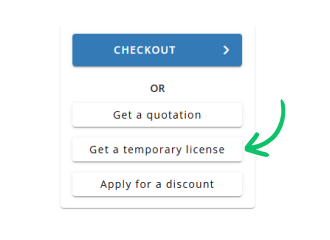
Use Get a temporary license button on the second step.
 English